Installing the NPU Driver (Online Installation Using apt-get)
Preparing Users
This section describes how to create an installation and running user. If the user already exists, skip this section.
|
Component |
Installation User |
Running User |
|---|---|---|
|
NPU driver |
root |
|
The following users are used in the example steps:
- The root user is used to install the driver.
- The running user is the non-root user HwHiAiUser (default running user of the driver).
1 2 |
groupadd HwHiAiUser useradd -g HwHiAiUser -d /home/HwHiAiUser -m HwHiAiUser -s /bin/bash |
For the usage and configuration requirements of the default user HwHiAiUser, see Atlas Hardware Product Account List. You can create other non-root users on your own.
Installing Dependencies and Configuring the Ascend Repository
- Check whether the source is available.
1apt-get updateIf the system reports an error or the waiting time becomes excessive, check whether the network is connected or modify the /etc/apt/sources.list file to configure an available repository. (For example, to configure the Huawei mirrored repository, you can see the configuration method of the mirrored repository in the Huawei Mirrors).
- Run the following command to install dependencies.
1apt-get install -y make dkms gcc linux-headers-$(uname -r)
- Configure the Ascend repository. Otherwise, the installation will fail.
wget https://ascend.devcloud.huaweicloud.com/cann/debian/cann-keyring_1.0.0_all.deb
sudo dpkg -i cann-keyring_1.0.0_all.deb
sudo apt-get update
Installing the NPU Driver
|
Product Type |
Installation Command |
||
|---|---|---|---|
|
Ascend 950 products |
|
||
|
Atlas A3 products |
|
||
|
Atlas A2 products |
|
||
|
Atlas training products |
|
||
|
Atlas inference products |
|
1
|
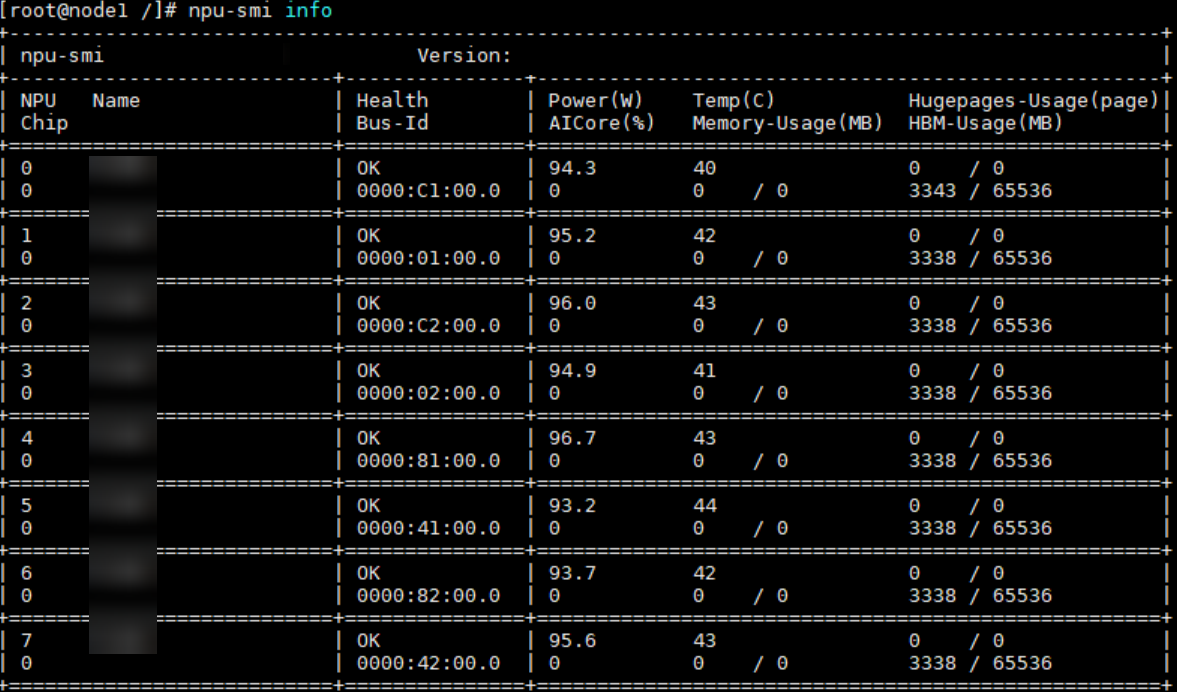
npu-smi info
|
If the driver information is displayed, the driver is successfully loaded. Otherwise, the loading fails. Visit the Support website to seek help in the forum or submit a technical service ticket.