Installing the NPU Driver and Firmware
In both PM and containerized deployments, you only need to install the NPU driver and firmware on the PM.
In VM deployments, refer to this section to install both the NPU driver and firmware on the PM and install only the NPU driver on the VM.
Installation Description
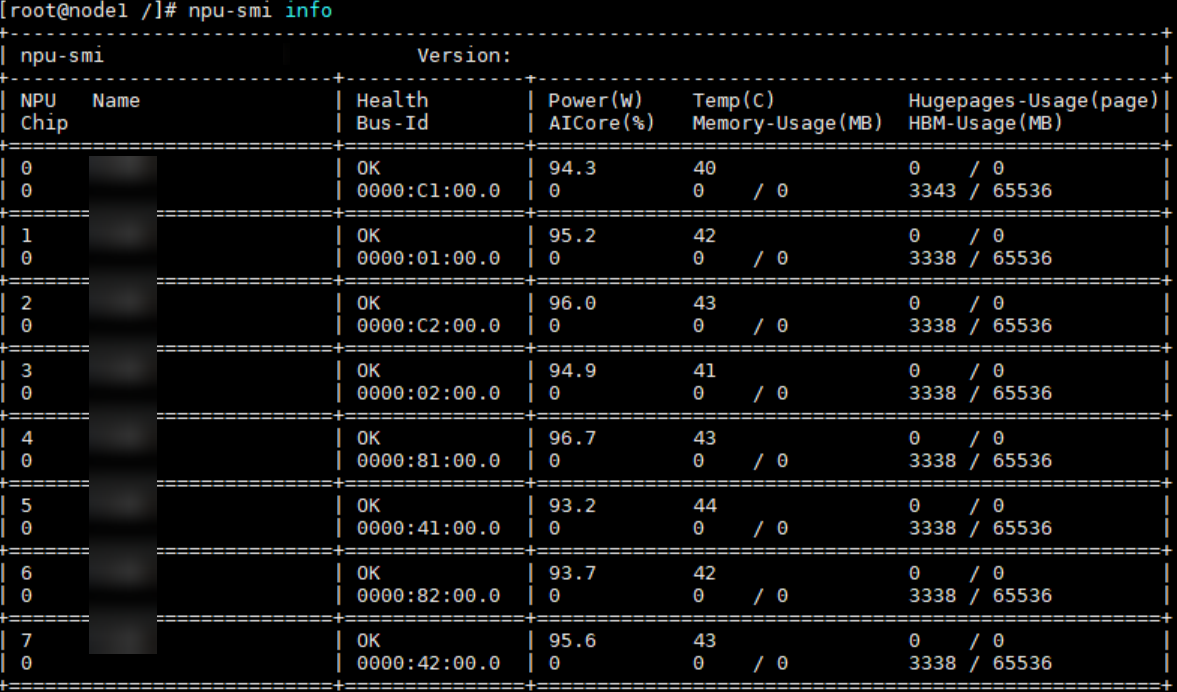
npu-smi info
- First-time installation: If no driver is installed when you receive the device, or if you removed the previous driver and firmware, install the driver first, then the firmware.
- Overwrite installation: If the driver and firmware are already installed and you need to reinstall them, install the firmware first, then the driver.
Preparing Users
The following describes how to create installation and running users. If the users already exist, skip this section.
|
Component |
Installation User |
Running User |
|---|---|---|
|
NPU driver and firmware |
root |
|
The users used in the example steps in this section are as follows:
- Driver/Firmware installation user: root
- Running user: Non-root user HwHiAiUser (default running user for the driver and firmware)
1 2 |
groupadd HwHiAiUser useradd -g HwHiAiUser -d /home/HwHiAiUser -m HwHiAiUser -s /bin/bash |
For the usage and configuration requirements of the default user HwHiAiUser, see Atlas Hardware Product Account List. You can create other non-root users on your own.
Note that if the --install-for-all parameter is not used during driver installation, the CANN software running user must belong to the same user group as the driver and firmware running user.
Installing Dependencies
- Check whether the source is available.Debian, Ubuntu, veLinux:
1apt-get updateIf the system reports an error or the waiting time becomes excessive, check whether the network is connected or modify the /etc/apt/sources.list file to configure an available repository. (For example, to configure the Huawei mirrored repository, you can see the configuration method of the mirrored repository in the Huawei Mirrors).
:1yum makecacheIf the system reports an error or the waiting time becomes excessive, check whether the network is connected or modify the /etc/yum.repos.d/xxxx.repo file to configure an available repository. (For example, to configure the Huawei mirrored repository, you can see the configuration method of the mirrored repository in the Huawei Mirrors).
- Run the following command to install dependencies.Debian, Ubuntu, veLinux:
1apt-get install -y make dkms gcc linux-headers-$(uname -r)
:1yum install -y make dkms gcc kernel-headers-$(uname -r) kernel-devel-$(uname -r)
If an error is reported or any dependency does not exist, rectify the fault by referring to Installing Dependencies Required for Compiling Driver Source Code.
Driver and Firmware Installation
- Log in to the installation environment as the root user and upload the driver and firmware packages to any directory in the installation environment, for example, /home.
- Go to the directory where the software package is stored and run the following command to add the execute permission:
1
2
chmod +x Ascend-hdk-<chip_type>-npu-driver_<version>_linux-<arch>.run
chmod +x Ascend-hdk-<chip_type>-npu-firmware_<version>.run
- Install the driver and firmware. The default installation path is /usr/local/Ascend.
- Run the following command to install the driver:
1./Ascend-hdk-<chip_type>-npu-driver_<version>_linux-<arch>.run --full --install-for-all
If the following information is displayed, the driver is installed:1Driver package installed successfully!
If some Linux tools are missing after you run the preceding command, install them based on the command output. If an error message indicating that the DKMS or any dependency is missing is displayed, rectify the fault by referring to Error Message "The list of missing tools:lspci,ifconfig" Displayed During Driver Installation.
- Install the firmware.
1./Ascend-hdk-<chip_type>-npu-firmware_<version>.run --fullIf the following information is displayed, the firmware is successfully installed:
1Firmware package installed successfully! Reboot now or after driver installation for the installation/upgrade to take effect

If the running user and user group of the driver are not created as HwHiAiUser according to the example steps, you must specify the running user and user group when installing the driver and firmware packages. The following is an example command:
./Ascend-hdk-<chip_type>-npu-driver_<version>_linux-<arch>.run --full --install-username=<username> --install-usergroup=<usergroup>
- Run the following command to install the driver:
- Determine whether to reboot the system as prompted. If the system needs to be rebooted, run the following command. Otherwise, skip this step.
After the driver is installed, the following information is displayed: "Driver package installed successfully! Reboot needed for installation/upgrade to take effect!"
After the firmware is installed, the following information is displayed: "Firmware package installed successfully! Reboot now or after driver installation for the installation/upgrade to take effect."
Reboot the system.
1reboot
- Check whether the driver is loaded.
1npu-smi infoIf the driver information is displayed, the driver is successfully loaded. Otherwise, the loading fails. Visit the Support website to seek help in the forum or submit a technical service ticket.