Performing Model Conversion
Creating an Application Project
- Choose from the menu bar. The New Project window is displayed, on which choose the Ascend App > Samples > AscendCL C++ project type and click Change to configure the CANN version. See Figure 1.Figure 1 Project creation
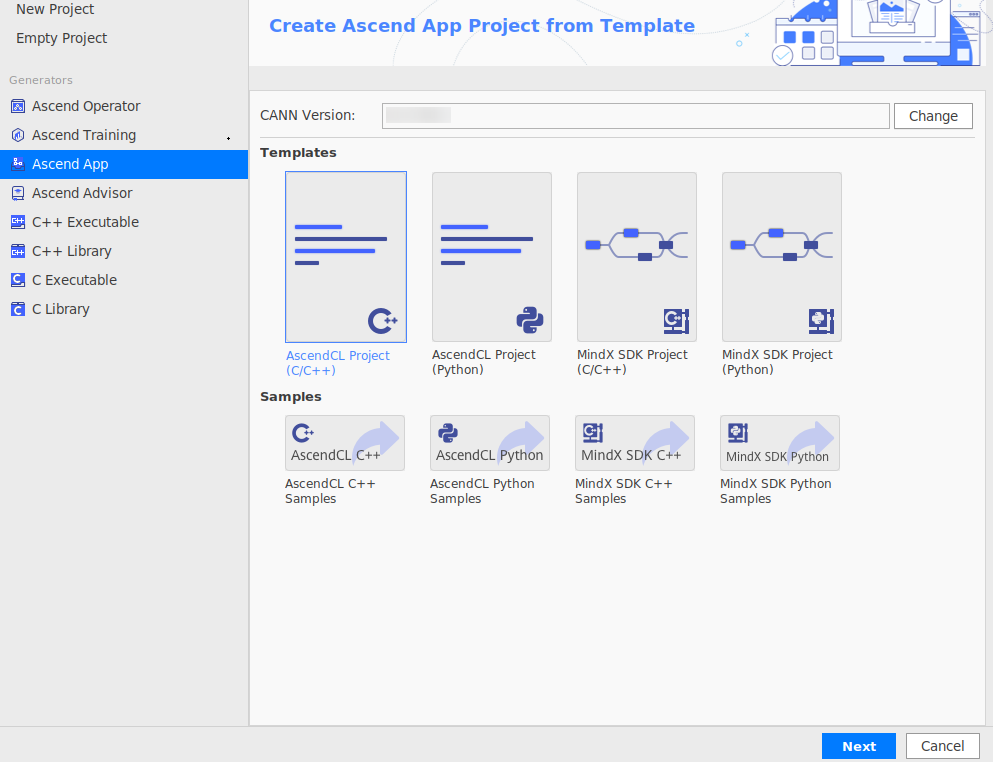
- CANN Version: CANN software package version. If the version is not identified or you want to change the version, click Change and select the Ascend-CANN-Toolkit installation path (to the version number or latest level) in the dialog box displayed.
- Samples: sample project. Select AscendCL C++.
- Clone and import the sample project.
- Select AscendCL C++ and click Next. The corresponding Gitee code repository page is displayed.
- On the Gitee code repository page, choose Clone or Download > Copy to copy the download link of the code package.
- Run the git clone URL (URL is the copied download link of the code package) command in the development environment to clone the code package to the development environment.
git clone https://gitee.com/ascend/samples.git
- Return to MindStudio, click
 on the toolbar, and open the ~/MindstudioProjects/samples/cplusplus/level2_simple_inference/1_classification/resnet50_imagenet_classification sample in the cloned project.
Figure 2 shows the generated application project directory.

Obtaining and Converting a Model
- Obtain the third-party model file.
Click here to download the ResNet-50 network model file (.onnx), click here to download the ResNet-50 network model code package, and upload the downloaded files to the MindStudio installation server for decompression as the MindStudio installation user.
- Convert the model.
Convert the third-party model into an offline model (.om file) that adapts to Ascend AI Processors.
- Choose from the menu bar to go to the model conversion page, and configure the model file on the Model Information tab page. See Figure 3.
- Click Next, moving on to the Data Pre-Processing tab page to configure data preprocessing (FP32 data does not need to be preprocessed). See Figure 4.
- Click Next, moving on to the Advanced Options Preview tab page to configure advanced options. See Figure 5.
MindStudio Advisor requires that the following API configuration be added under Additional Argument during model conversion:
--debug_dir=${HOME}/MindstudioProjects/samples/cplusplus/level2_simple_inference/1_classification/resnet50_imagenet_classification/debug/ # Configure the directory of the output debugging information file. ${HOME} indicates the home directory of the project. If the debug directory does not exist, create it manually. --op_debug_level=4 # Generate the TBE instruction mapping file (operator CCE file). The file is stored in the kernel_meta_* directory generated in the --debug_dir directory, for example, ${HOME}/MindstudioProjects/MyApp/debug/kernel_meta_*. --enable_small_channel=1 --insert_op_conf=${HOME}/MindstudioProjects/samples/cplusplus/level2_simple_inference/1_classification/resnet50_imagenet_classification/model/ResNet50_for_PyTorch_1.4_code/infer/convert/aipp_resnet50.aippconfig # --enable_small_channel works with --insert_op_conf to enable the operator fusion function. Specify insert_op_conf as the aipp_resnet50.aippconfig file in the ResNet-50 network model code package ResNet50_for_PyTorch_1.4_code. - Click Finish to start model conversion.
The model conversion log records are printed to the Output window in the lower part of MindStudio. If the message "Model converted successfully" is displayed, the model conversion is complete. The Output window also displays the model conversion commands, environment variables, model conversion result, model output path, and model conversion log path.
After the model conversion is complete, an .om model file that can be executed in the operating environment is generated in the Output Path on the server.


