Locating AI Core Errors
You can perform the following steps to locate a fault. If the fault persists, contact technical support. After obtaining the logs, click here to contact technical support.
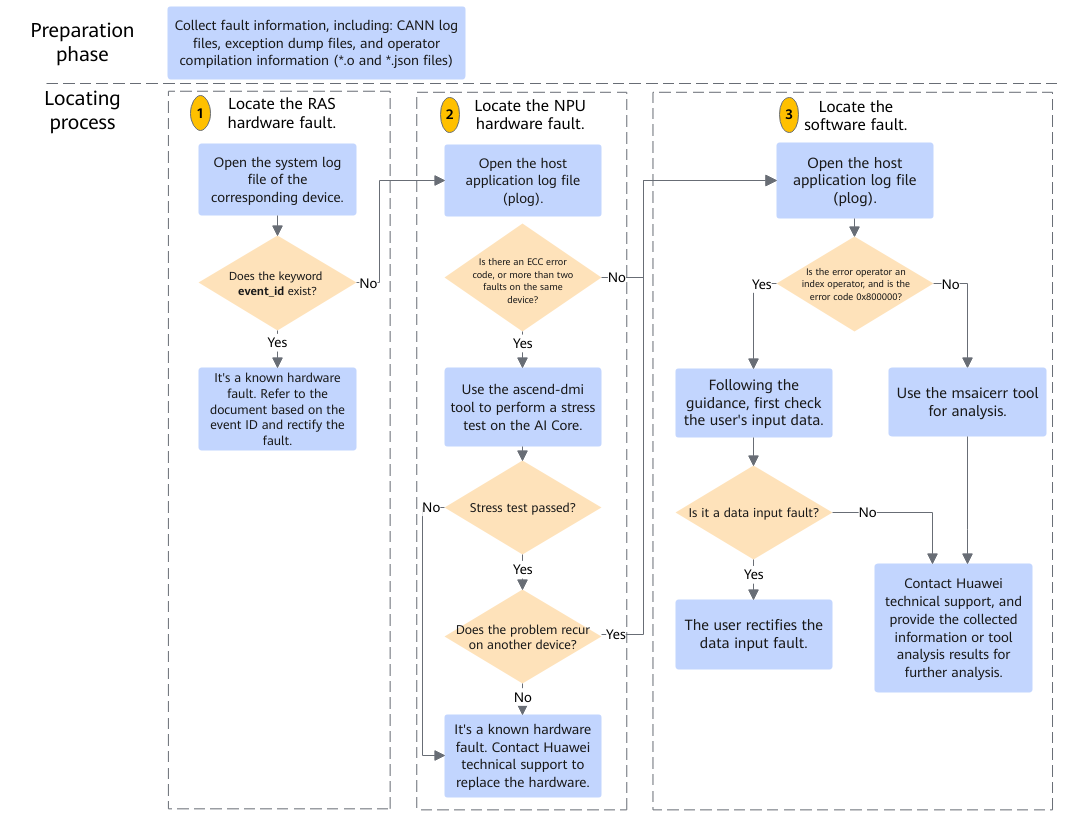
In the preparation phase, you need to collect fault information, including: CANN log files, exception dump files, and operator compilation information (*.o and *.json files). For details about how to collect fault information, see Collecting AI Core Error Information.
The locating process is as follows:
- Locate the RAS hardware fault.
RAS hardware faults refer to faults related to hardware reliability, availability, and serviceability.
In the collected logs, find the system log of the corresponding device around the time when the AI Core error occurs in the slog/dev-os-id/run/event/event_*.log file. Check whether the keyword event_id exists in the log. If not, go to 2. If so, obtain the value of event_id (that is, the RAS hardware error code), click Health Management Fault Definition to obtain the manual of the corresponding version, and refer to the solution provided within. For details about typical cases, see HBM Bit ECC Fault, iCache Data Verification Fault, and AI Core Timeout Fault.
- Locate the NPU hardware fault.In the collected application logs, find the log/[run|debug]/plog/plog-pid_*.log file generated around the time when the AI Core error occurs. Check whether the error message in the log contains ECC-related errors (with keywords such as ECC or ECC error) or whether multiple errors occur on the same chip ID.
- If no, go to 3.
If so, continue to use the ascend-dmi tool to perform a stress test on the AI Core. If the stress test is abnormal, a known hardware fault occurs. In this case, contact technical support to replace the hardware. For details about typical cases, see AI Core Hardware Fault. If the stress test is normal, specify another device in the program and run the program to check whether the problem recurs. If the problem recurs, go to 3. If the problem does not recur, the hardware may be faulty. In this case, contact technical support to replace the hardware. After obtaining the logs, click here to contact technical support.
The ascend-dmi tool needs to be installed separately. The following is the example command for performing a stress test on the AI Core. If the error message GENERAL_WARN or EMERGENCY_WARN is reported, the AI Core may be faulty.
ascend-dmi --dg -i aicore -s
The ascend-dmi tool is contained in the MindCluster ToolBox software package. For details about the mapping between the software and CANN, click here. For details about how to install and use the ascend-dmi tool, click here.
- If no, go to 3.
- Locate the software fault.
- In the collected application logs, find the log/[run|debug]/plog/plog-pid_*.log file generated around the time when the AI Core error occurs. Check whether the 0x800000 error of the index operator exists in the log. If not, go to 3.b. If so, check the input data of the operator by referring to Index Operator Out of Range.
Typical index operators include GatherV2, Scatter, and GatherElements.
- Use the msaicerr tool to analyze the information collected in the preparation phase. The msaicerr tool generates an analysis report (info.txt file). Provide the msaicerr-generated result data (including the minimum set information for analyzing AI Core errors and the analysis report) to technical support for further analysis. After obtaining the logs, click here to contact technical support.
For details about how to use the msaicerr tool, see Using the msaicerr Tool to Analyze AI Core Errors.
- In the collected application logs, find the log/[run|debug]/plog/plog-pid_*.log file generated around the time when the AI Core error occurs. Check whether the 0x800000 error of the index operator exists in the log. If not, go to 3.b. If so, check the input data of the operator by referring to Index Operator Out of Range.